
Find out how to configure Personal Access Tokens, service accounts, or access certificates to authenticate to your OKMS domain regional REST API.
Objective
This guide explains how to authenticate to the OKMS data plane — the regional REST API exposed on your OKMS domain (for example https://us-east-vin.okms.ovh.us). This API is shared by Key Management Service (KMS) and Secret Manager.
Three authentication methods are available for the REST API. KMIP integrations support access certificates only — we recommend reserving certificates for KMIP use cases, as they require a more complex setup than tokens.
Requirements
- An OVHcloud customer account.
- An OKMS domain in the target region (created when ordering KMS or activating Secret Manager in that region).
Instructions
Understand the OKMS data plane
The OKMS data plane is the regional API endpoint for cryptographic operations (KMS) and secret storage (Secret Manager). It is distinct from the centralized OVHcloud API control plane (/v2/okms/...), which manages OKMS domain provisioning and configuration.
| Layer | Endpoint example | Purpose |
|---|---|---|
| Data plane (regional) | https://us-east-vin.okms.ovh.us |
Encrypt, sign, manage keys and secrets on the domain |
| Control plane (OVHcloud API) | /v2/okms |
Order domains, manage credentials, configure logging |
You can interact with the data plane through the unified Swagger UI at https://<region>.okms.ovh.us/swagger/, the OKMS CLI, or the Go SDK.
Your okmsId and your regional endpoint are both returned by the following API call:
Both are also displayed in the General information tab of your OKMS domain dashboard.
Choose your authentication method
| Method | Best for | REST API | KMIP |
|---|---|---|---|
| Personal Access Token (PAT) | Scripts and automation acting on behalf of a local user | Supported | Not supported |
| Service account | Machine-to-machine integrations | Supported | Not supported |
| Access certificate | KMIP-compatible products, mTLS clients, browser-based Swagger with client certificates | Supported | Required |
For REST API access, prefer a PAT or service account. Reserve access certificates for KMIP or mTLS-based clients.
Set up authentication
Step 1 — Create a local user
If you do not have one yet, create an OVHcloud local user.
Step 2 — Create a PAT
Create a Personal Access Token (PAT) on the local user.
Step 3 — Create an IAM policy
Create an IAM policy that grants the local user the required OKMS actions on your domain. See IAM rights for OKMS below.
Use the PAT on the data plane
Send the PAT as a Bearer token:
In the Swagger UI, use the personalAccessToken scheme in the Authorize dialog.
If the regional endpoint does not accept the Bearer scheme directly, use hybrid authentication with the pat_jwt_ prefix as described in the PAT guide.
Step 1 — Create a service account
If you do not have one yet, create an OVHcloud service account.
Step 2 — Create an IAM policy
Create an IAM policy that grants the service account the required OKMS actions on your domain. See IAM rights for OKMS below.
Use the service account on the data plane
Obtain an OAuth2 access token using the client-credentials flow as described in How to use service accounts to connect to OVHcloud APIs, then pass it as a Bearer token:
In the Swagger UI, use the oAuth2ClientCredentials scheme in the Authorize dialog.
Step 1 (optional) — Create an identity
If you do not have one yet, create an OVHcloud identity (local user, user group, or service account). See Presentation of identities.
Step 2 — Create an OKMS certificate
Create an OKMS access certificate with at least one identity attached. See Manage your OKMS access certificate.
Step 3 — Create an IAM policy
Create an IAM policy that grants the identities linked to the certificate access to your OKMS domain.
- For REST API access, use the
okms:apikms:*actions listed below. - For KMIP access, grant the
okms:kmip:*actions documented in KMIP IAM rights.
Use the certificate on the data plane
Present the client certificate over TLS (mTLS). For browser-based Swagger access, see Use the OKMS Swagger UI below.
Use the OKMS Swagger UI
The OKMS domain exposes a unified Swagger UI at https://<region>.okms.ovh.us/swagger/. For example, for a domain in us-east-vin: https://us-east-vin.okms.ovh.us/swagger/.
You can also open it from the Swagger link on your OKMS domain dashboard.
The Swagger UI supports all three REST API authentication methods. Complete the setup steps for your chosen method, including the required IAM policy, before executing requests.
Personal Access Token
- Click the
Authorizebutton (lock icon) in the Swagger UI. - Under personalAccessToken (HTTP Bearer, JWT format), paste the PAT you created for your local user.
- Click
Authorize, thenClose.
Swagger sends your token as an Authorization: Bearer <token> header on every request you execute.
Service account
- Click the
Authorizebutton in the Swagger UI. - Under oAuth2ClientCredentials, enter your service account
client_idandclient_secret. See How to use service accounts to connect to OVHcloud APIs to obtain these credentials. - Swagger obtains an OAuth2 access token using the client-credentials flow and attaches it to subsequent requests.
Access certificate
Access certificate authentication uses mutual TLS (mTLS) at the transport layer. The certificate is presented by your browser when connecting to the Swagger URL — it is not configured through the Authorize dialog.
Import your certificate into the browser
Convert your OKMS certificate and private key to PKCS#12 format (assuming files named ID_certificate.pem and ID_privatekey.pem):
You will be prompted to set a password for the encrypted file. Import client.p12 into your browser:
On Firefox
- Type
about:preferences#privacyinto the address bar. - Scroll down to the
Certificatessection.
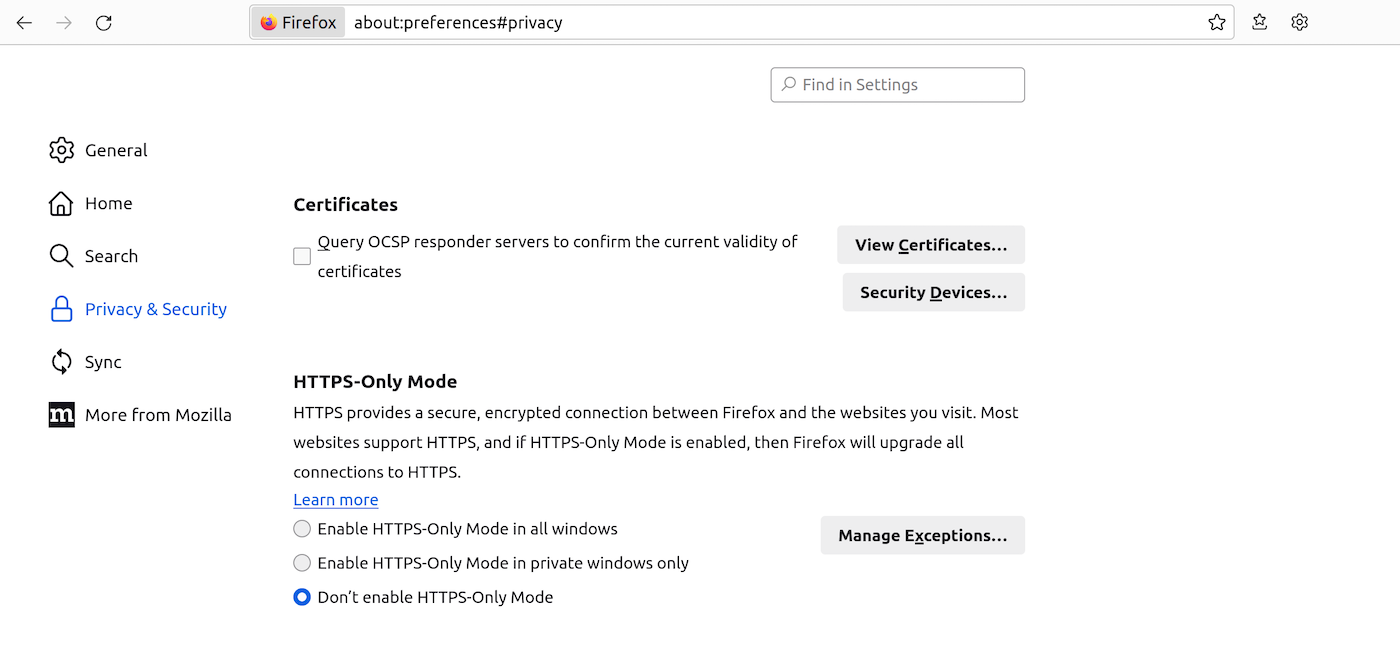
- Click
View Certificates..., open theMy Certificatestab, thenImport...and select yourclient.p12file. - Enter the PKCS#12 password when prompted.
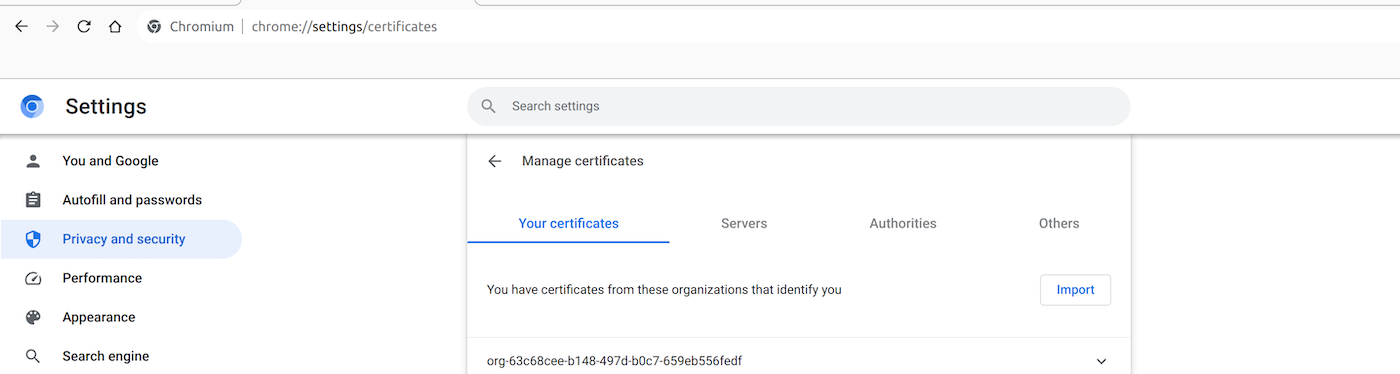
On Chrome/Chromium
- Type
chrome://settings/certificatesinto the address bar. - Open the
Your certificatestab, clickImport, and select yourclient.p12file. - Enter the PKCS#12 password when prompted.
Access Swagger with your certificate
Open https://<region>.okms.ovh.net/swagger/ in your browser. You will be prompted to select the imported certificate:
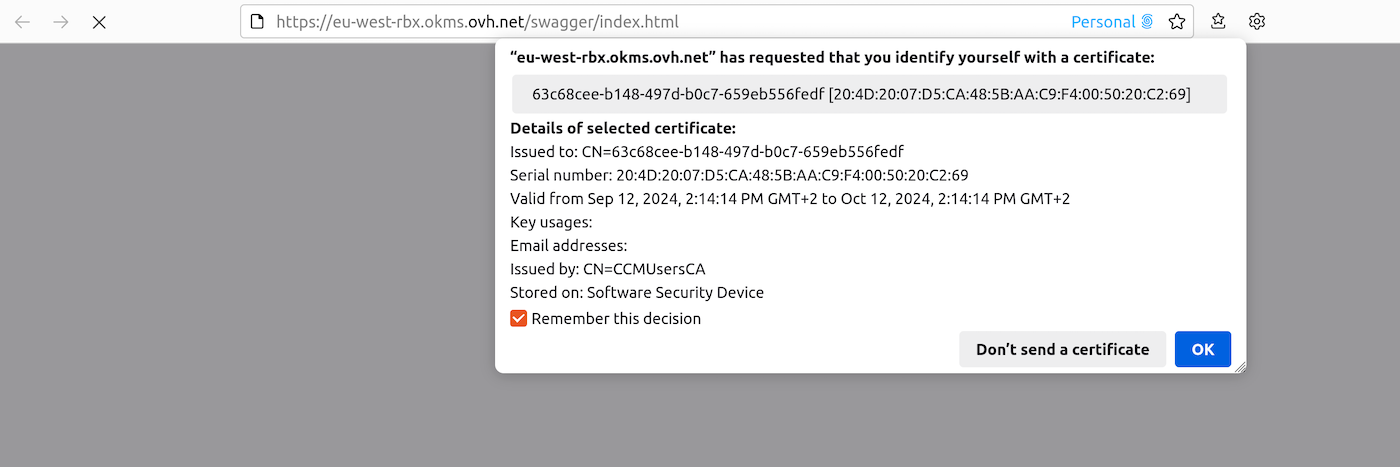
You can now execute API calls interactively from the Swagger UI.
IAM rights for OKMS
OKMS IAM actions follow the pattern okms:<channel>:<resource>/<operation>:
| Channel | Scope | Used for |
|---|---|---|
okms:apiovh |
OKMS domain management via the OVHcloud API v2 | OKMS domain and certificates configuration, keys and secrets management |
okms:apikms |
Regional data plane REST API | Direct regional API calls |
okms:kmip |
KMIP protocol | KMIP-compatible product integrations — see dedicated documentation |
Domain management actions on OVHcloud API v2
Browse the full action list in the OVHcloud API console under product type Key Management System (KMS), or in IAM policies when creating a policy.
| Action | Description |
|---|---|
okms:apiovh:resource/get |
List OKMS services on the account |
okms:apiovh:resource/update |
Update an OKMS service |
okms:apiovh:serviceKey/get |
List or retrieve encryption keys |
okms:apiovh:serviceKey/create |
Create or import a key |
okms:apiovh:serviceKey/import |
Import a key |
okms:apiovh:serviceKey/update |
Update key metadata (also required to activate or deactivate a key) |
okms:apiovh:serviceKey/delete |
Delete a key |
okms:apiovh:serviceKey/activate |
Activate a key |
okms:apiovh:serviceKey/deactivate |
Deactivate a key |
okms:apiovh:secret/get |
List secrets and metadata |
okms:apiovh:secret/create |
Create a secret |
okms:apiovh:secret/edit |
Required to update a secret's data or metadata |
okms:apiovh:secret/updateMetadata |
Update secret metadata |
okms:apiovh:secret/delete |
Delete a secret |
okms:apiovh:secret/version/getData |
Read secret version content |
okms:apiovh:secret/version/edit |
Required to delete, deactivate, or activate a secret version |
okms:apiovh:secret/version/create |
Append a new version of the secret data |
okms:apiovh:secret/version/delete |
Delete a secret version |
okms:apiovh:secret/version/activate |
Activate a secret version |
okms:apiovh:secret/version/deactivate |
Deactivate a secret version |
okms:apiovh:credential/get |
List access certificates |
okms:apiovh:credential/create |
Create an access certificate |
okms:apiovh:credential/delete |
Delete an access certificate |
okms:apiovh:secretConfig/get |
Read Secret Manager default configuration |
okms:apiovh:secretConfig/update |
Update Secret Manager default configuration |
Actions for the KMS regional API
Browse the full action list in the regional Swagger UI at https://<region>.okms.ovh.net/swagger/ or in IAM policies when creating a policy.
| Action | Description |
|---|---|
okms:apikms:serviceKey/get |
List or retrieve encryption keys |
okms:apikms:serviceKey/create |
Create a key |
okms:apikms:serviceKey/import |
Import a key |
okms:apikms:serviceKey/unwrapKey |
Use the key as a transport key to import a wrapped key |
okms:apikms:serviceKey/wrapKey |
Use the key as a transport key to export a wrapped key |
okms:apikms:serviceKey/update |
Update key metadata |
okms:apikms:serviceKey/delete |
Delete a key |
okms:apikms:serviceKey/activate |
Activate a key |
okms:apikms:serviceKey/deactivate |
Deactivate a key |
okms:apikms:serviceKey/encrypt |
Encrypt data with a key |
okms:apikms:serviceKey/decrypt |
Decrypt data with a key |
okms:apikms:serviceKey/sign |
Sign data with a key |
okms:apikms:serviceKey/verify |
Verify a signature |
okms:apikms:serviceKey/dataKey/create |
Generate a data key |
okms:apikms:serviceKey/dataKey/decrypt |
Decrypt a data key |
okms:apikms:secret/get |
List secrets and metadata |
okms:apikms:secret/create |
Create a secret |
okms:apikms:secret/updateMetadata |
Update secret metadata |
okms:apikms:secret/delete |
Delete a secret |
okms:apikms:secret/version/getData |
Read secret version content |
okms:apikms:secret/version/create |
Append a new version of the secret data |
okms:apikms:secret/version/delete |
Delete a secret version |
okms:apikms:secret/version/activate |
Activate a secret version |
okms:apikms:secret/version/deactivate |
Deactivate a secret version |
okms:apikms:secretConfig/get |
Read Secret Manager default configuration |
okms:apikms:secretConfig/update |
Update Secret Manager default configuration |
Listing a secret version (okms:apikms:secret/get) is separate from reading its content (okms:apikms:secret/version/getData). Grant both when the identity must read secret values.
Importing a wrapped key needs both the permission to import a key on the OKMS domain (okms:apikms:serviceKey/import) and the permission to unwrap on the transport key (okms:apikms:serviceKey/unwrapKey).
Example IAM policies
Apply these templates to your OKMS domain resource. Its URN is displayed in the General information tab of your OKMS domain dashboard. Replace <identity_urn> and <okms_urn> with your values. Create policies via the Control Panel or the IAM API.
Full admin — full control over the OKMS domain via REST API:
Read-only — list and inspect resources without write or cryptographic operations:
Add okms:apiovh:secret/version/getData (OVHcloud API v2) or okms:apikms:secret/version/getData (KMS regional API) if the identity must be able to read secret values.
Cryptographic operations only — use keys for encrypt, decrypt, sign, and verify without managing keys or secrets:
Secret access only — read Secret Manager secrets without access to KMS keys, certificates, or domain configuration:
To manage secrets via the OVHcloud API v2, add okms:apiovh:secret/create, okms:apiovh:secret/edit, okms:apiovh:secret/updateMetadata, and okms:apiovh:secret/delete. To manage them via the KMS regional API, add okms:apikms:secret/create, okms:apikms:secret/updateMetadata, and okms:apikms:secret/delete.
NOTE: KMIP operations use okms:kmip:* actions, not okms:apiovh:* or okms:apikms:*. Certificate-based KMIP access requires both certificate creation and the KMIP IAM rights from the KMIP guide.
Go further
Using the OVHcloud Key Management Service (KMS) with your data
Use Secret Manager with REST API