
Learn how to order a HYCU for OVHcloud license, link it to your HYCU account, and manage it from the OVHcloud Control Panel.
This tutorial is designed to help you as much as possible with common tasks. If you are having difficulty performing these actions, please contact a specialized service provider. OVHcloud cannot provide you with technical support in this regard.
Requirements:
- Access to the OVHcloud Control Panel
- The HYCU controller software installed and configured on a VM (HYCU offers 30-day trials)
Instructions
Topics:
Order the license
We offer different license packs based on the number of virtual machines (VMs) used by your Nutanix workloads.
For more information, visit our HYCU for OVHcloud page.
From the OVHcloud Control Panel, navigate to the Hosted Private Cloud menu and, under Storage and Backups, select HYCU.
Click Start to begin ordering your license.
Choose your pack type, then click Order.
Once your order is complete, you will receive a confirmation email, and your subscription will appear in the dashboard.
Click on the license name to proceed with activation.
Activate the license
1. Initiate the link between OVHcloud and HYCU
When you click a license in your dashboard, a menu will appear that lets you rename, activate, renew, or cancel your HYCU for OVHcloud license.
Click the Activate license button (in the Shortcuts box).
A window will open to upload the license request file.
2. Prepare your HYCU instance/appliance
If you do not already have HYCU controller software installed and configured on a VM, follow the instructions below that match your use case.
For further assistance regarding the use of HYCU, please see HYCU's official documentation. The User Guides will be the most helpful, for example: HYCU R-Cloud Hybrid Cloud Edition v5.2.1.
Install the HYCU controller on your cluster and have the HYCU controller running. Access that VM and proceed to Step 3.
For instructions to do this using Nutanix, please read the Install and configure HYCU step of this guide.
Create an OVHcloud Support ticket including the type of hypervisor you are using, and an OVHcloud team member will retrieve the installation file you need.
Once you receive the file, install it on your cluster and have the HYCU controller running. Access that VM and proceed to Step 3.
For instructions to do this using Nutanix, please read the Install and configure HYCU step of this guide.
3. Finalize the link between OVHcloud and HYCU
NOTE: This step requires the HYCU software installed and configured on a VM. See Step 2 to complete this process.
To obtain your license request file, log in to your Hybrid Cloud HYCU instance/appliance and go to the Licensing menu.
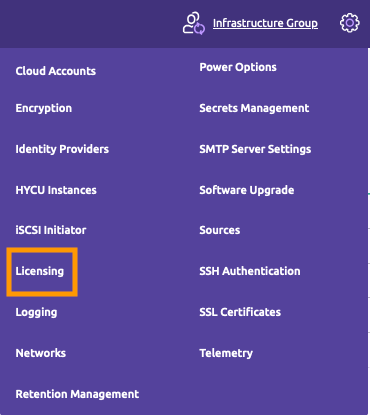
Click Download Request and download the file.
Back in the OVHcloud Control Panel, drag and drop the downloaded file into the open window, then click Enable.
After verification, the status of your license will change to Active.
Once the license is active, click the Download license button (at the bottom of the General information box).
Return to the Licensing menu of your Hybrid Cloud HYCU instance/appliance and upload the license you just downloaded from the OVHcloud Control Panel.
A window will inform you that your license has been validated.
License management
Regenerate the license
If your HYCU technical configuration has changed, you will need to make a new request to obtain a new license file compatible with your HYCU controller.
From the OVHcloud Control Panel, navigate to the Hosted Private Cloud menu and, under Storage and Backups, select HYCU.
Once in your license dashboard, click the Regenerate License button (in the Shortcuts box).
As with the activation of your license, download and upload your license request.
Then follow the same process as for license activation:
- Download the license key.
- Upload the license key to your Hybrid Cloud instance/appliance.
Cancel the license
You can cancel your HYCU subscriptions from the OVHcloud Control Panel.
From the OVHcloud Control Panel, navigate to the Hosted Private Cloud menu and, under Storage and Backups, select HYCU.
Once in your license dashboard, click Cancel license in the Subscription box.
Then confirm the cancellation by clicking Yes, cancel.
Upgrade the license
To upgrade your offer, you must first cancel your current HYCU for OVHcloud subscription and then order a new subscription with the required virtual machines pack.
Go further