
Learn how to restore your data with Backup Agent.
We recommend using the File-level restore (FLR) wizard. This is the primary and most common method. It lets you restore one or more files or folders from a backup, without restarting the server.
WARNING: Full server restore from a recovery ISO (Bare Metal Recovery) is not supported and, therefore, is outside the scope of this guide; our customer support teams cannot assist with it.
For more information about the Backup Agent product, see our Backup Agent - Product Overview guide.
Requirements
- A Bare Metal server with the Backup Agent installed and configured on it (see this guide for more information)
- At least one backup has been performed (see this guide for more information)
Instructions
File-level restore (FLR wizard)
This is the primary method to recover one or more files or folders from a backup.
To restore files and folders, click on the tab corresponding to your Operating System:
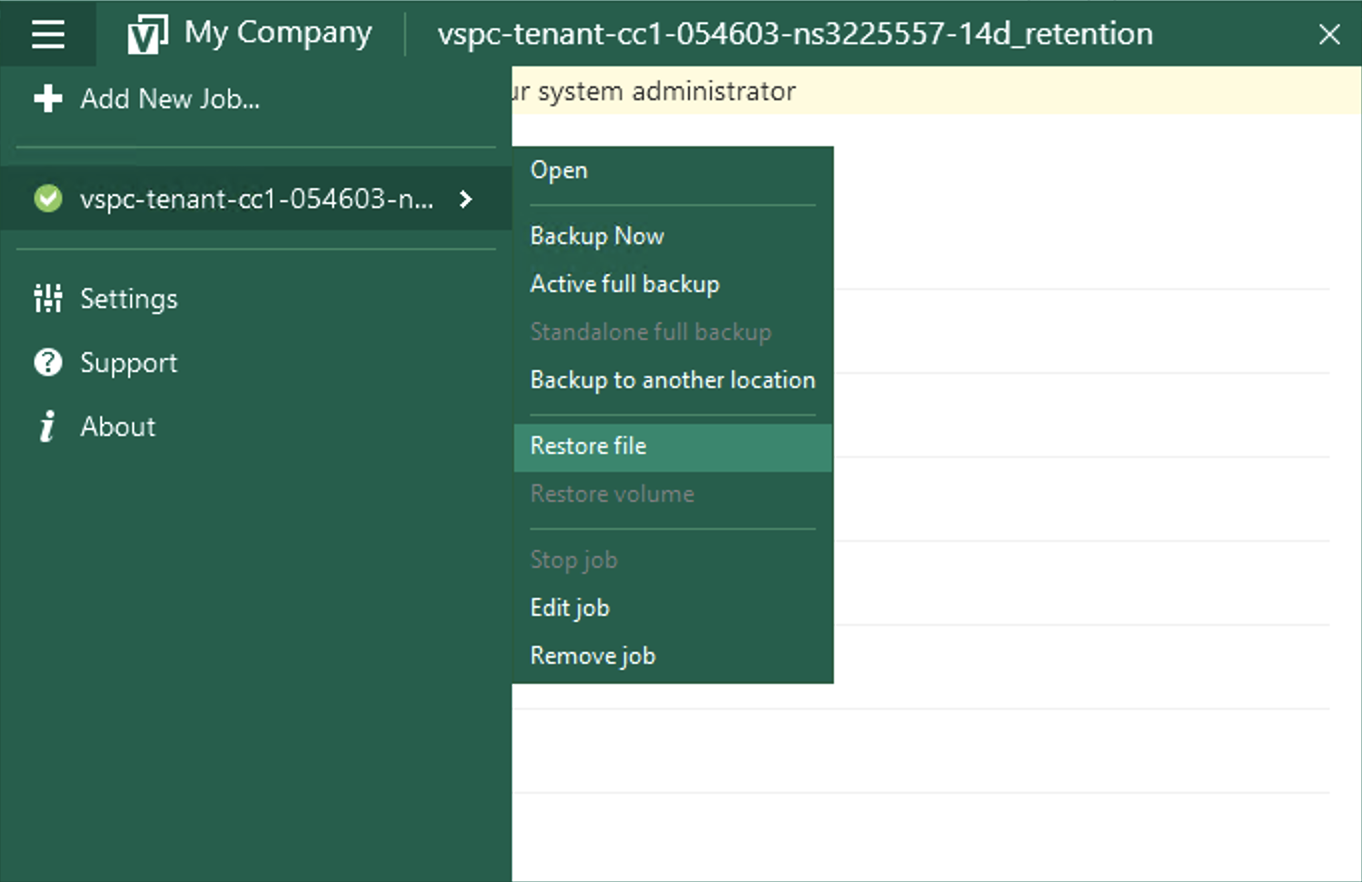
Open the "Veeam Agent" application on your Bare Metal server:

Go to the menu and select Restore File:
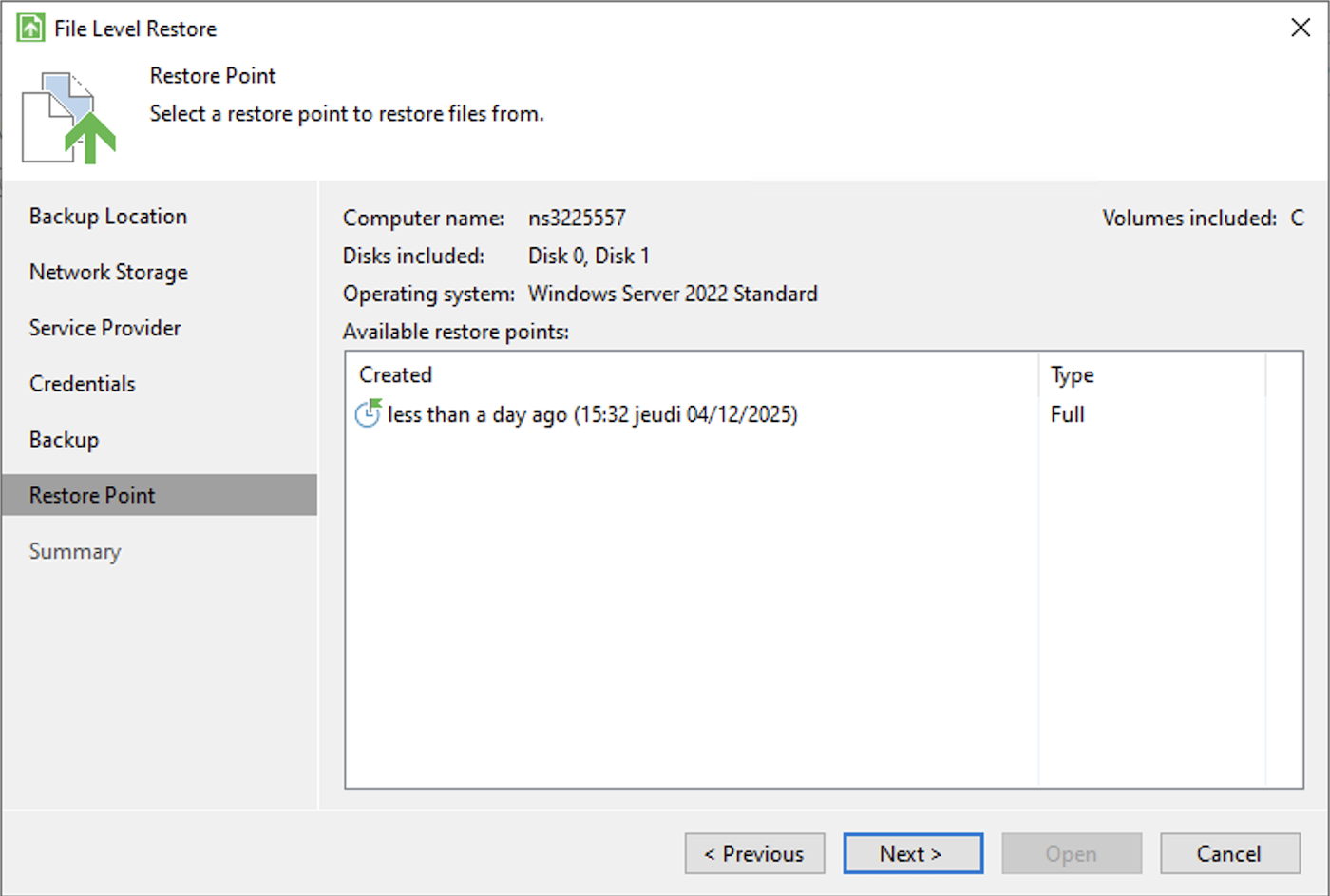
Select the desired restore point in the wizard:
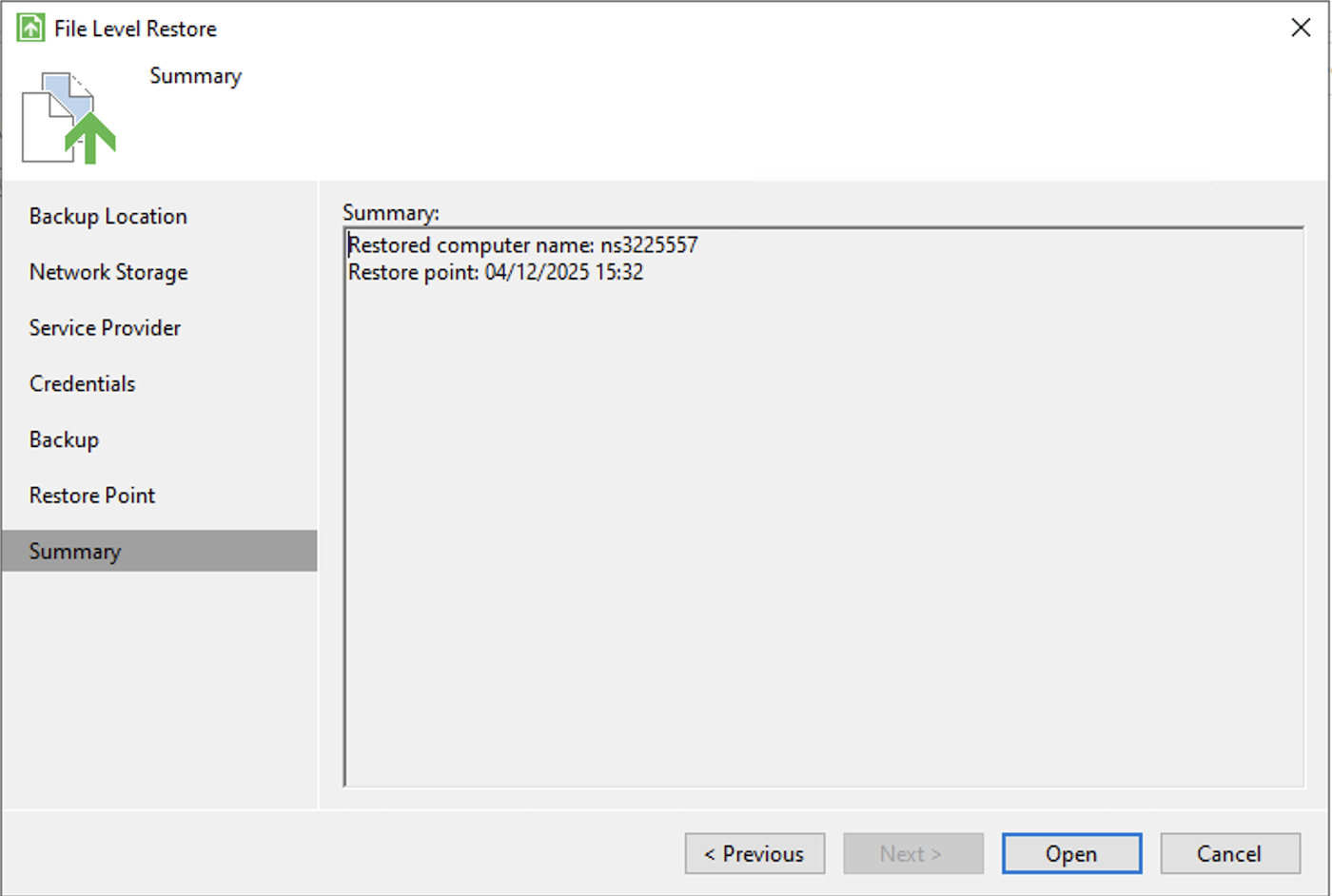
Then confirm:
Finally, search for your file and select an option:
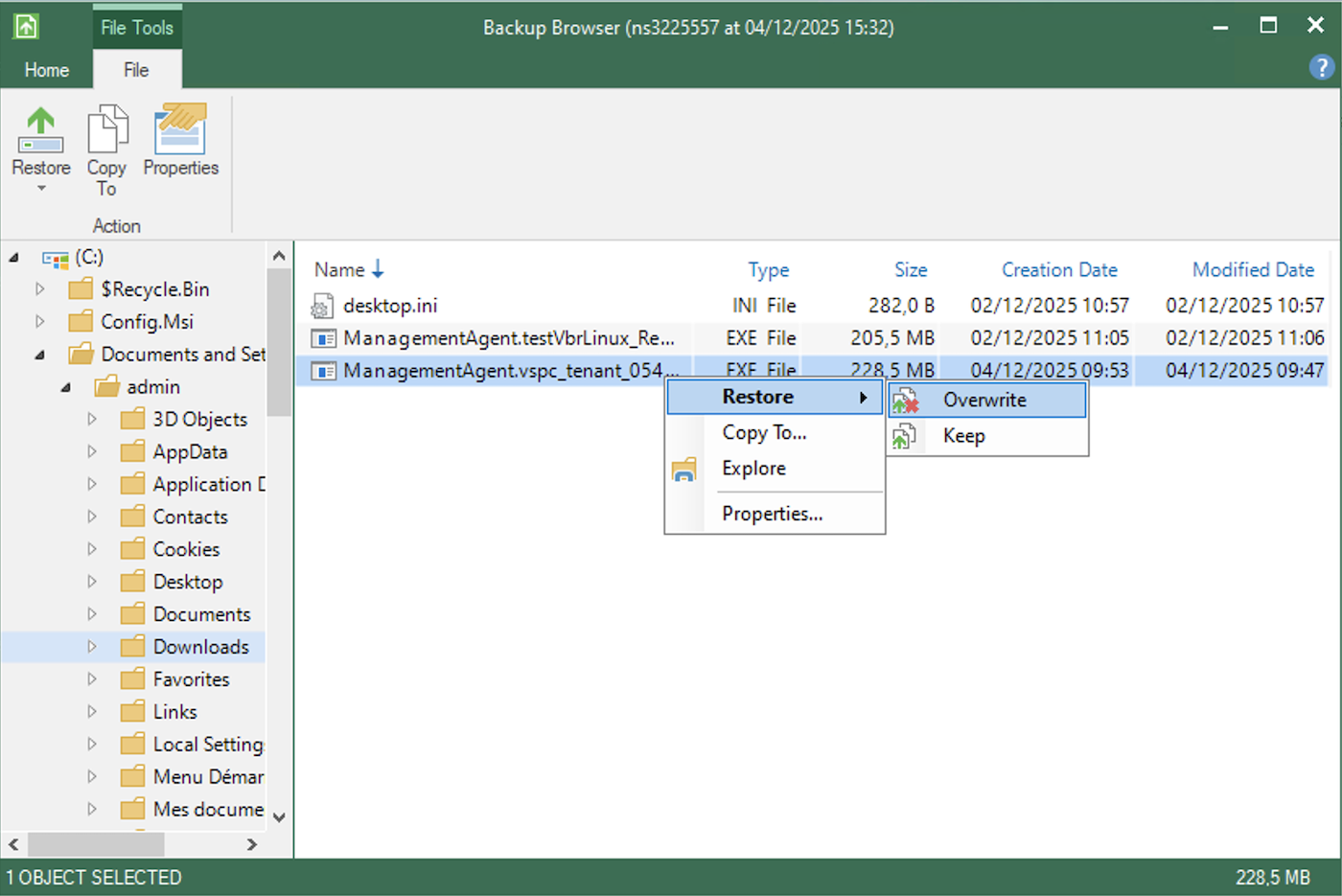
- Restore > Overwrite: restores the file while overwriting the one currently on the server.
- Restore > Keep: restores the file while keeping the one currently on the server.
- Copy To: copies the file to a location on your server.
- Explore: explores the backup.
- Properties: displays the file properties.
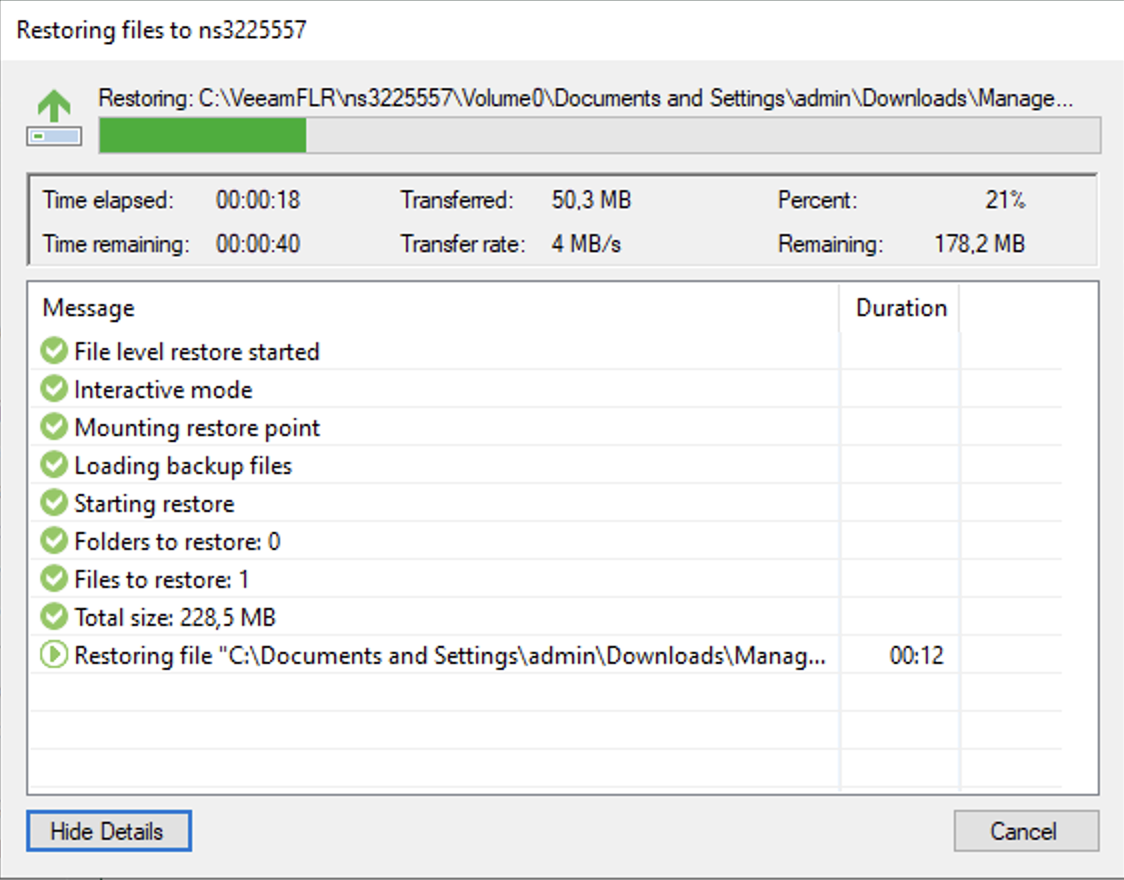
Launching a restore will give you a final window that will show the transfer:
To restore files and folders on Linux, you have two options: via the graphical interface or via the command line.
Via the graphical interface
- Connect to your Bare Metal server via SSH.
-
Launch the Veeam interface by typing the following command:
- In the Veeam Agent control panel, press the
Rkey to access the File Level Restore wizard. - In the Imported Backups pane, use the
UpandDownkeys to select the backup whose data you wish to restore. - In the Restore Points pane, use the
UpandDownkeys to select the restore point and pressEnter. - The Veeam Agent will mount the content of the backup file to the
/mnt/backupdirectory in the computer's file system. PressEnterto return to the Veeam Agent control panel.
Via the command line
To restore files via the command line, you must first mount the backup:
-
List your available backups (use
--allto show all imported backups: -
List the restore points of a backup:
-
Mount a restore point:
The
point_idis theOIB IDfrom the previous command's output.This will output confirmation of the mount and state the session id.
- Once mounted, you can access the files via the mount point (usually in
/mnt/backup/). - Copy the desired files from the mount point to their destination.
-
Once the restore is complete, use the session ID to unmount the backup:
For more information, see the Veeam documentation and the command line restore documentation.
Go further
For more information and tutorials, please see our other Dedicated Servers support guides or explore the guides for other OVHcloud products and services.