
Learn how to configure your first backup using Backup Agent on a Bare Metal server.
You have just ordered your Backup Agent offer for your Bare Metal server. Discover how to set up your first backups.
Find more information about the Backup Agent product on this page.
Requirements
- A dedicated server in your OVHcloud account.
- You need to have booted and configured an Operating System on your Bare Metal server.
OVHcloud Control Panel Access
- Direct link: Backup Agent
-
Navigation path:
Bare Metal Cloud>Storage and backups>Backup Agent
NOTE: You must ensure that your server can be reached by our Veeam infrastructure.
You will receive the exact information in your delivery email.
Here is the information to allow access to your Bare Metal server:
- IP/DNS of the server:
vspc-cgw1.prod01.us-east-vin.backup.us.ovhcloud.com - Port: 6180
We also strongly recommend that you allow your server to reach other external addresses so that it can send your data to the Vault. There is no need to allow incoming traffic in this context.
Instructions
The steps to create a backup for your server are as follows:
- Adding your server to your Backup Agent and downloading the agent.
- Retrieving your credentials for the VSPC web interface.
- Installing the agent on your server.
Once the agent is installed, it will receive the backup policy and will be able to perform backups.
Once these steps are complete, your first backup will run automatically.
Ordering and downloading a Backup Agent
On the Backup Agent page, click Back up a Bare Metal server.
From the drop-down menu, select a server hosted in Vint Hill or Hillsboro to back up and click Start.
NOTE: At this time, Backup Agent cannot be used with non-US servers.
In the pop-up window, check the box to agree to the Terms of Service and Privacy Policy and click Confirm.
You should see the Bare Metal server you selected in your order in the table, with the status not_installed. This is normal at this stage; you now need to install the agent on your server.
Click the Download button at the top of the table listing your agents.
To install your agent on your Bare Metal server, click on the tab corresponding to your Operating System and choose either to download the installation file or use one of the commands provided to retrieve it.
On the Backup Agent page, select the Agents tab, and click Add a server.
In the right-hand panel, select your server and operating system and click Add.
NOTE: At this time, Backup Agent cannot be used with non-US servers.
Then, either Download the installation file or use one of the commands provided to retrieve it.
Retrieving your VSPC credentials
Once your Backup Agent service has been delivered, go to the Messages section of the OVHcloud Control Panel and open the Getting Started: Install Backup Agent message.
Among other information, you will see a link to retrieve your credentials for the VSPC web interface.
WARNING: The link to the credentials expires 7 days from when the message is sent and 1 hour from when the link is clicked. Retrieve and save your login information as quickly as possible.
If you are unable to retrieve your credentials, please contact our support team.
Running Backup Agent on your server
Once the installation file is on your Bare Metal server, you can run it and follow the software procedure:
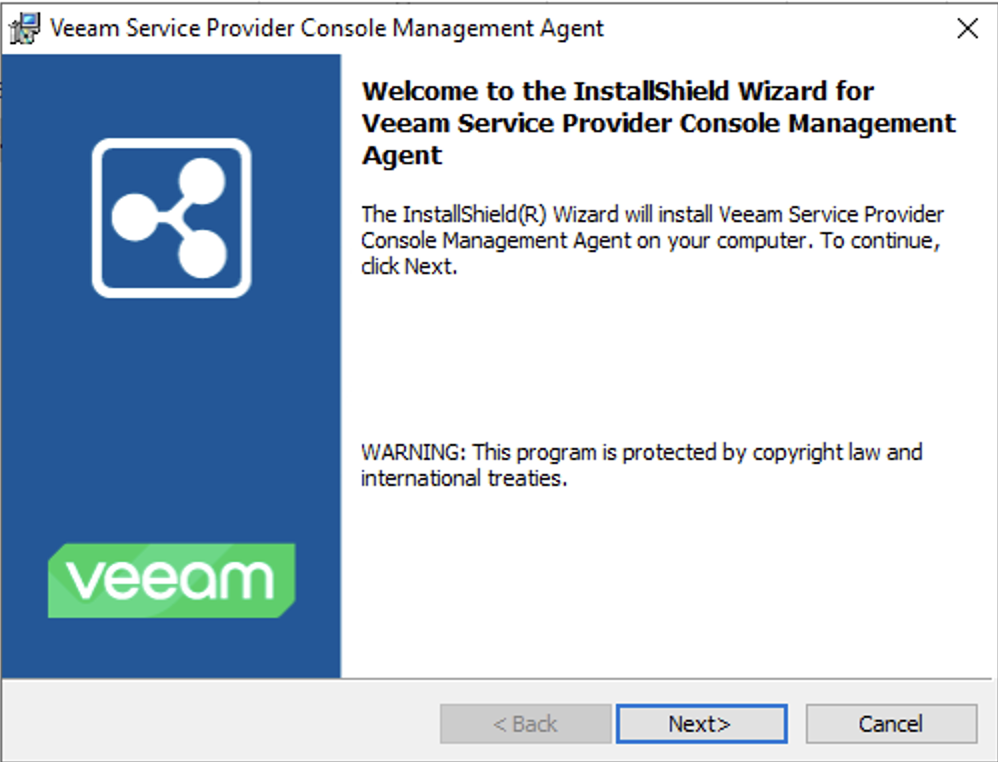
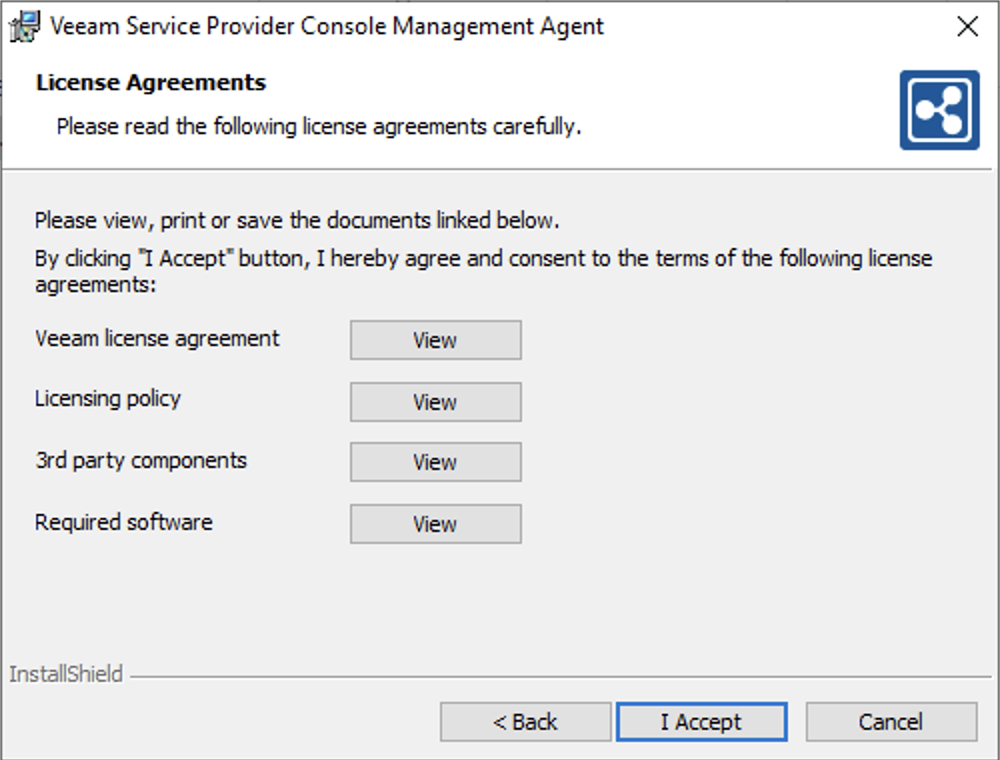
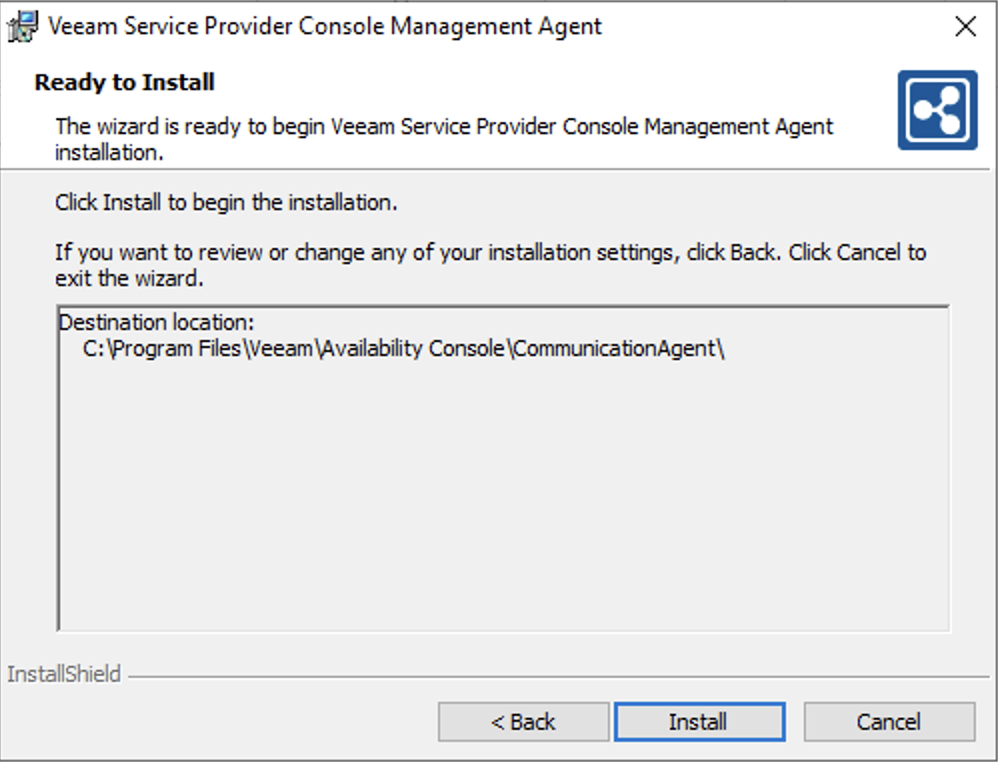
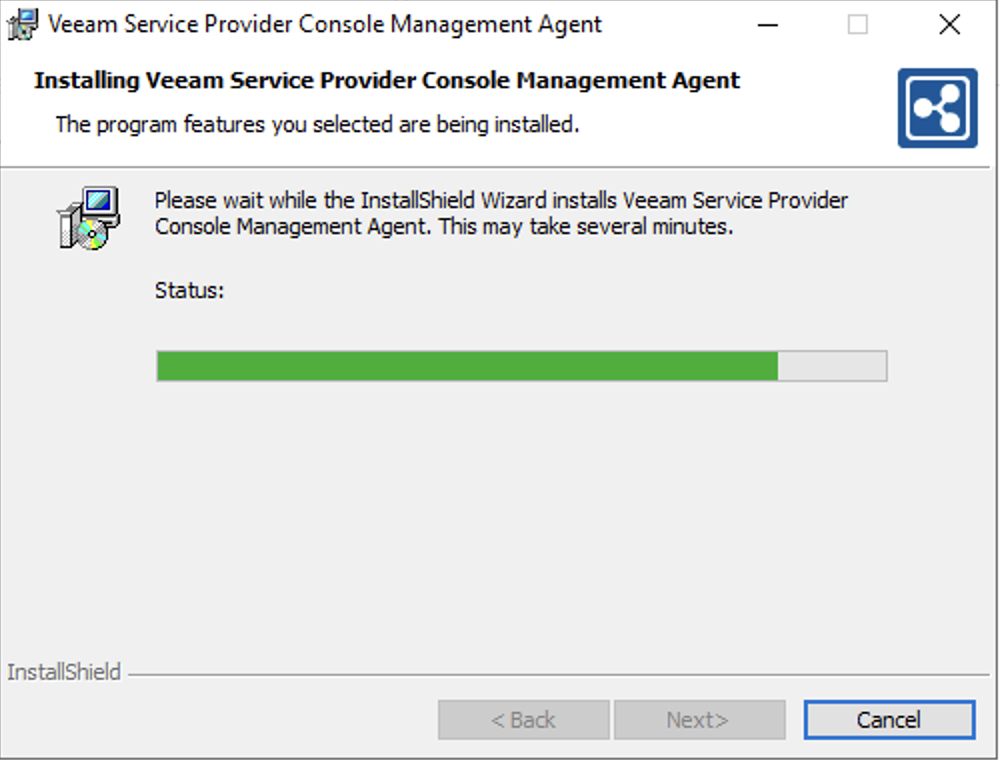
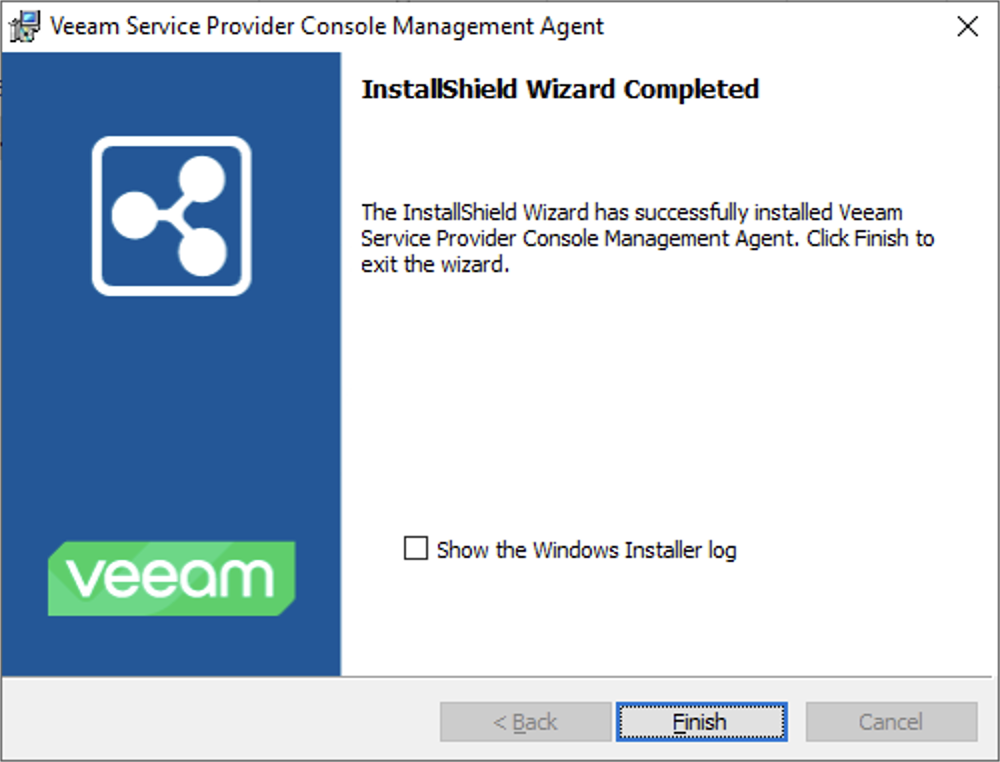
Once installed, the agent connects to our infrastructure to retrieve your backup policy:
NOTE: It will take approximately 10-15 minutes for the Agent Status to display as Connected.

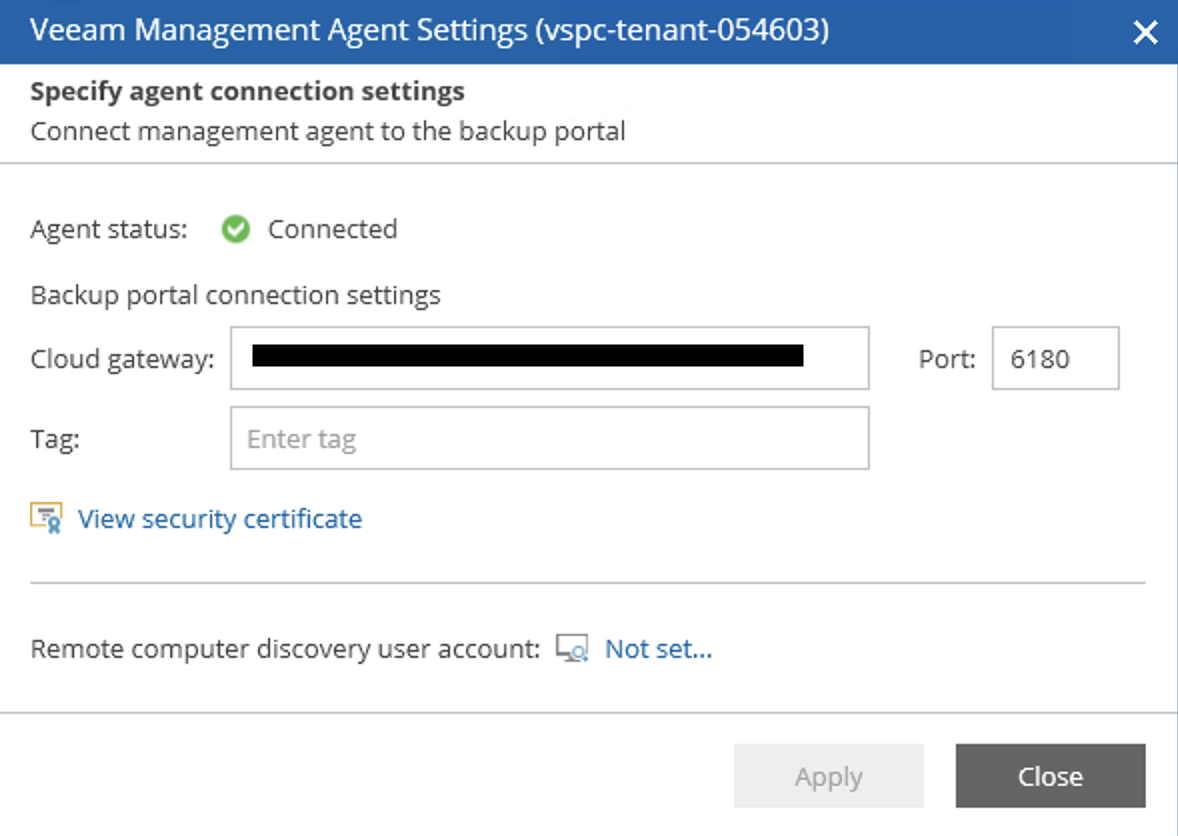
VSPC will apply a configuration on the backend that allows the Backup Agent to be deployed with a backup policy.
WARNING: You MUST wait for the agent's status changes to enabled in the OVHcloud Control Panel...
or Healthy in the VSPC interface, it is safe to perform backups.
Once the installation file is on your server, go to the folder containing it and run the file as follows:
You may need to run the following command to grant execution permissions if your system does not support bash or sh:
Once the installation is complete, you can verify it with this command:
NOTE: It will take approximately 10-15 minutes for the Connection state to display as Connected.
You can then see that one element is Not installed:
This is normal. VSPC will apply a configuration on the backend that allows the Backup Agent to be deployed with a backup policy. Once the Backup Agent's status changes to Running, it is safe to perform backups.
WARNING: You MUST wait for your agent's status to reach Running in the CLI...
or enabled in the OVHcloud Control Panel...
or Healthy in the VSPC interface, it is safe to perform backups.
Go further
For more information and tutorials, please see our other Dedicated Servers support guides or explore the guides for other OVHcloud products and services.