
Learn how to install VMware tools on Linux or Windows.
VMware Tools improve the performance of a virtual machine and enable many of its simple features for use in VMware products.
Requirements
- A user account with access to vSphere (created in the OVHcloud Control Panel)
Instructions
The procedure for installing VMware Tools varies depending on the operating system of the virtual machine. For information about the specific procedure for each OS, see the VMware documentation for VMware Tools.
Linux
Recent versions
Most recent Linux distributions offer the installation of VMware Tools via their package management systems, under the name Open VM Tools.
This allows VMware Tools to be kept up-to-date in the same way as other components of the VM's operating system.
If the distribution you are using offers it, you can find the Open VM Tools under the following package name: open-vm-tools.
This installation method is valid at least for the following GNU/Linux versions:
- Fedora 19 and higher
- Debian 7.x and higher
- openSUSE 11.x and higher
- Ubuntu 12.04 LTS and higher
- Red Hat Enterprise Linux 7.0 and higher
- CentOS 7.0 and higher
- Oracle Linux 7.0 and higher
- SUSE Linux Enterprise 11 SP4 and higher
Previous versions
To mount the VMware tools disk from the vSphere web client, right-click on the VM, then click on Guest OS and then Install VMware Tools.
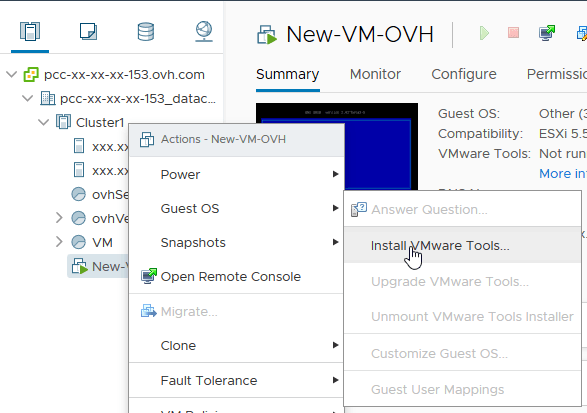
Then, mount the volume using the following command:
Then unpack the VMware Tools archive (located in /tmp) using the following commands:
If you want to keep suggested answers and not be interrupted during installation, add "default" as an argument to the installation line.
Once the installation is complete, the tools disk will automatically be unregistered from the system.
Windows
Once the volume has been mounted via the "Install/Upgrade VMware Tools" option, find the disk in your VM's "workstation." Double-click it to launch the Tools installation.
The installation wizard will then ask you to accept the licenses and select the type of installation (we recommend the "Full Installation").
Once the installation is complete, it will suggest that you restart the machine to apply the changes. The CD drive will be automatically unmounted at the end of the installation.
Go further
For more information and tutorials, please see our other VMware on OVHcloud or Hosted Private Cloud guides. You can also explore the guides for other OVHcloud products and services.